Periodic captures
The desktop agent takes screenshots at a set interval, plus an optional random one inside each interval so timing is unpredictable.


Speedo Work Track automatically captures attendance, active work, idle periods, and breaks, turning every workday into actionable insights and accurate reports. No manual tracking required.
START YOUR FREE TRIAL See how it works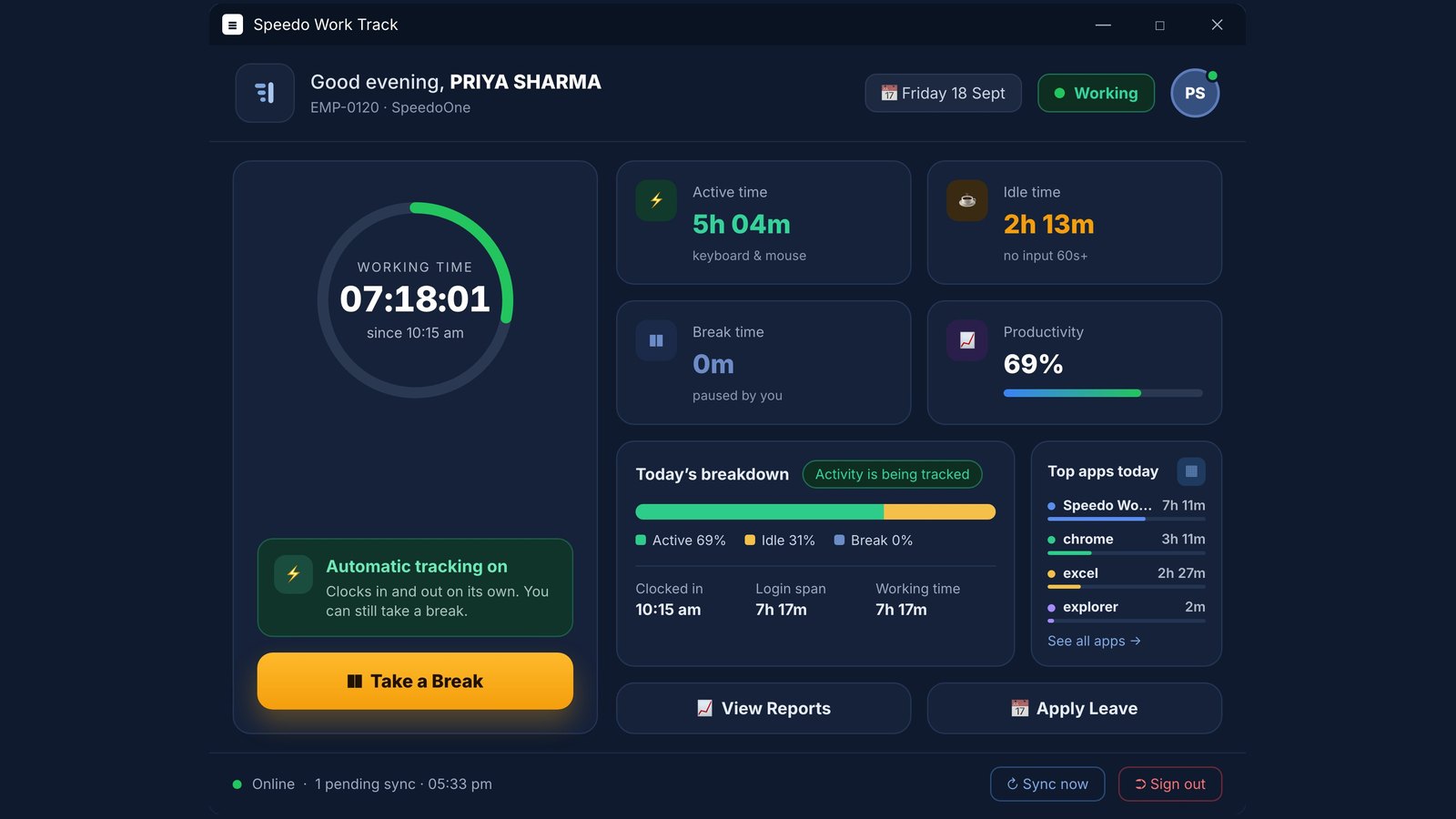
Captures are taken only while a person is clocked in and active. Hours worked decide attendance on their own.
The desktop agent takes screenshots at a set interval, plus an optional random one inside each interval so timing is unpredictable.
Every hour the agent stitches that hour’s screenshots into a short timelapse video, shown in the same gallery.
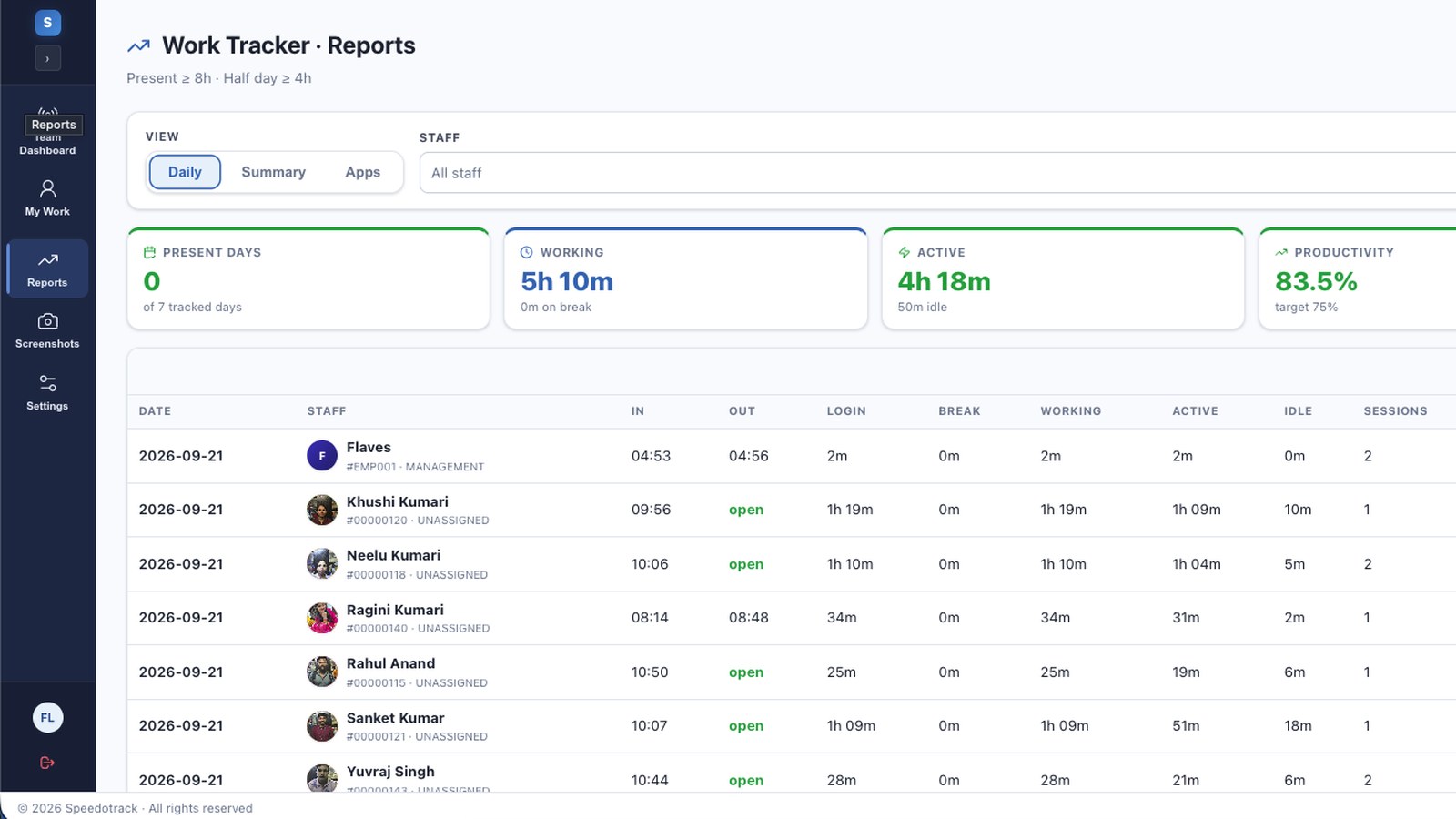
Hours worked in a day decide attendance against your daily target. Only working days count as absences.
Office hours flag late logins and early logouts, with grace minutes you choose.
Login, break, working, active and idle time per day, present days and shortfall against target.
The tracker clocks in and out on its own, so the working time is always right — and anyone can still take a break.
Keyboard and mouse input counts as active. No input for 60 seconds counts as idle.
One tap pauses tracking. Break time is shown separately as “paused by you”.
The share of working time that was active, shown as a simple percentage.
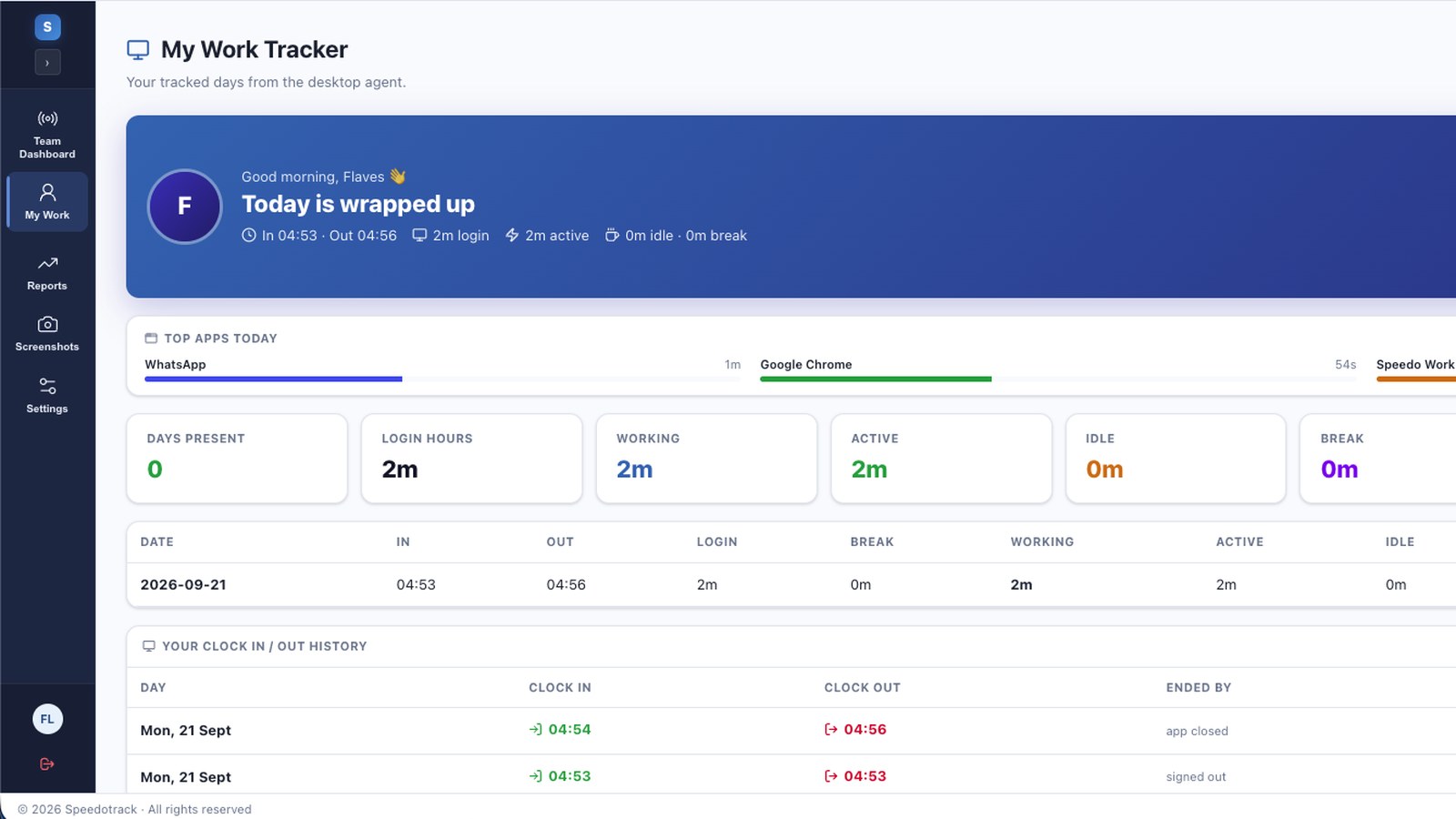
See which apps were used most today, and for how long.
Request leave from the same window you track time in — no separate form.
Active, idle and break time for each day in one view, ready for reviews and payroll.
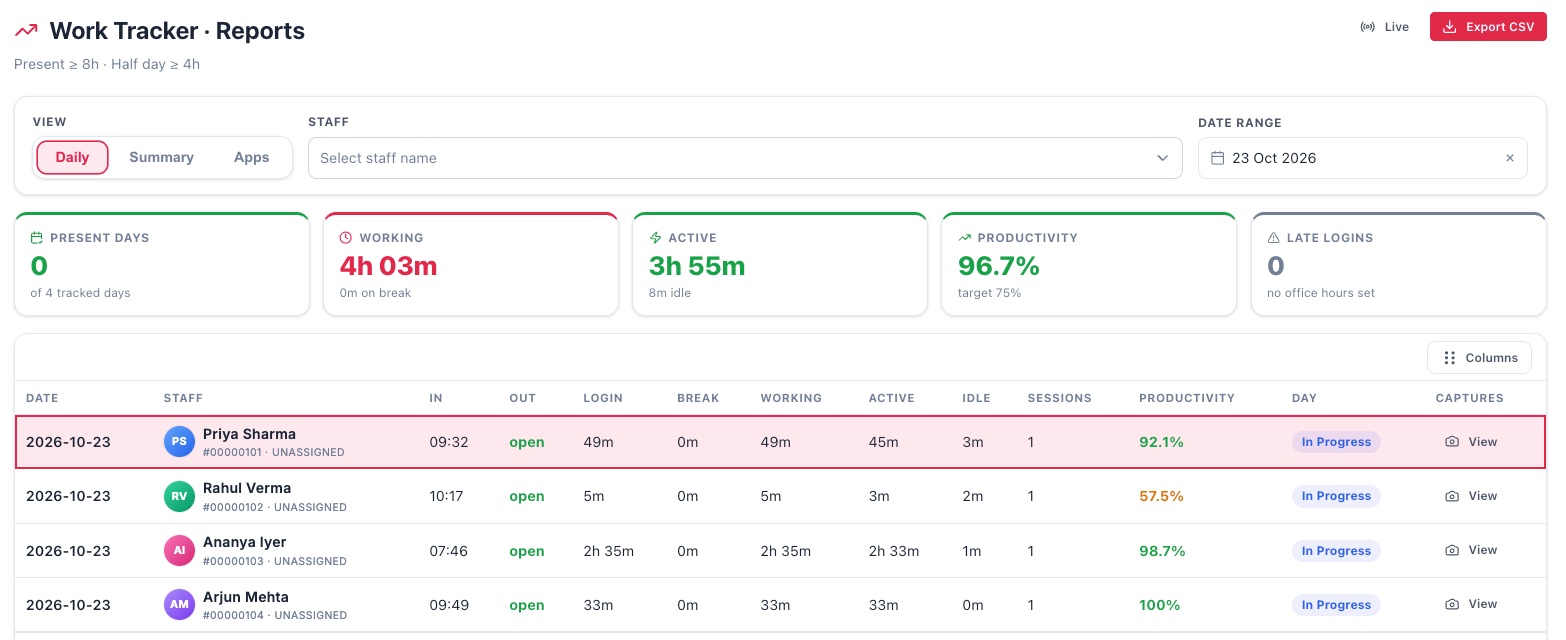
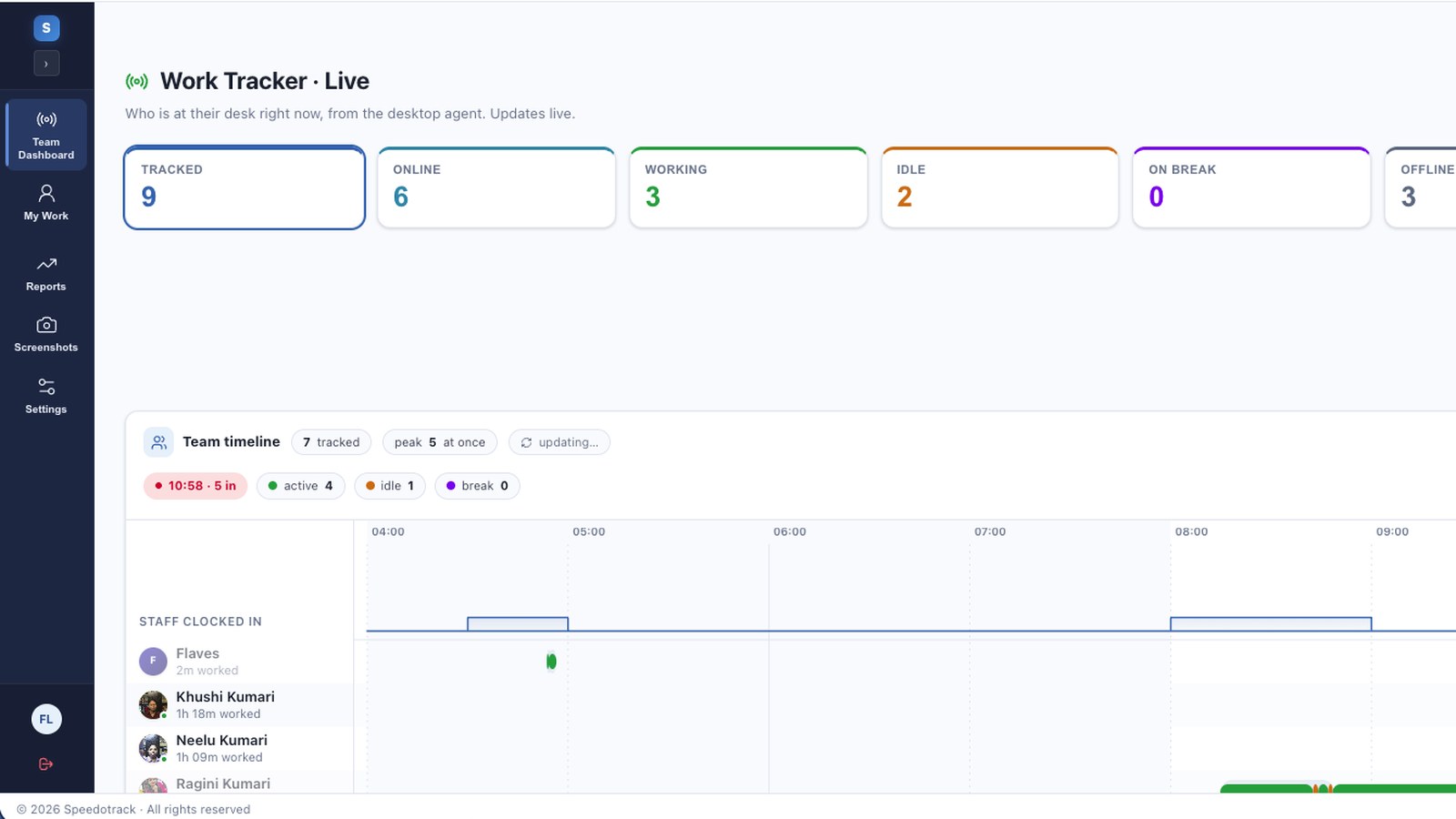
Managers see the whole team from the desktop agent, live. The view refreshes every 30 seconds while you watch today.
Install the desktop app once. After that, the workday tracks itself.
Install Speedo Work Track and sign in with your employee account.
Automatic tracking starts the working time as soon as you begin.
Active, idle and break time, plus the apps used, add up as you work.
Staff see their own day. Managers see the whole team live, with reports and screenshots.
The tracker sits on the desktop and keeps going — even when the internet drops.
One policy for the whole company. Agents pick it up on their next sign-in or restart.
How time is measured and what the numbers mean.
Time when there is keyboard or mouse input on the computer. It is shown as Active time on the dashboard.
When there has been no keyboard or mouse input for 60 seconds or more, by default. Admins can change this limit in Settings. Idle time is shown separately, so it never inflates active time.
It is the share of working time that was active. For example, 5h 04m active out of 7h 17m working is 69%.
No. Automatic tracking clocks in and out on its own. Use Take a Break when you step away, and that time is shown as break time.
Only if an admin switches captures on. They are taken only while a person is clocked in and active, and stored in the Drive under HR / Work Track. Admins decide whether staff can view their own screenshots and how many days captures are kept.
Hours worked in a day decide Present, Half day or Absent. Office start and end times flag late logins and early logouts, with grace minutes you set. Only your working days count as absences when nothing was tracked.
A live team dashboard showing who is Working, On break or Offline, a team timeline, reports for any date range with CSV export, and each person’s screenshots and timelapse videos.
Download it for Windows (64-bit) or Mac (Apple silicon and Intel), both version 0.4.19. Install it, then sign in with your SpeedoOne employee login.
Tracking continues. Records wait as pending syncs and are sent when you are back online, or straight away with Sync now.
Automatic time tracking for your whole team. Free to start.